Configuration
To get the most use from the Item Planner app, you should review the Reordering Policy on the Planning tab on the Item Card. It is this policy that controls much of the behaviour on the Item Planner list page.
How it works
The Item Planner calculates the values taken from:
- Inventory
- Quantity on Purchase Orders
- Quantity on Sales Orders
...and combines with the values taken from:
- Reordering Policy
- Reorder Point
- Reorder Quantity
- Maximum Inventory
...to calculate if it is time to create a purchase to meet the demand.
The calculation of how much is to order ('Qty. to Order') is dependent on how the Reordering Policy is set.
Setup Planning on the Item Card
The Item Planner supports three different Reordering Policies. Below are some examples of how you can setup this on the Item Card.
You can learn more about how the Item Replenish/Planning works on Microsoft Documents.
Note
There are many different settings on the Item Card related to Replenish and Planning. The Item Planner uses some settings to calculate and display the status of the Item. But these settings can also be used in many other parts of Business Central. Before making any changes to the settings below, please make sure that you are NOT making any changes that can have a negative effect on other parts of Business Central.
Maximum Qty.
When the Reordering Policy is set to Maximum Qty., the calculation looks at if the Inventory and the Quantity on existing Purchase orders is below the Reorder Point, the Quantity to Order is the difference between Inventory and Quantity on existing Purchase orders.
| Reordering Policy | Condition | Calculation Formula |
|---|---|---|
| Maximum Qty. | 'Inventory' + 'Qty. on Purch. Order' <= 'Reorder Point' | 'Qty. to Order' := 'Maximum Inventory' - Inventory - 'Qty. on Purch. Order' |
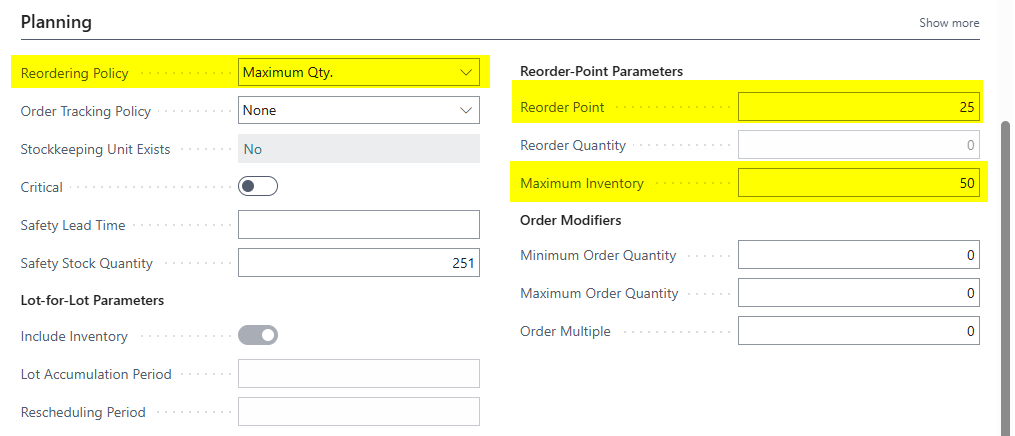 Example of Reordering Policy set to Maximum Qty.
Fixed Reorder Qty.
When setting the Reordering Policy to Fixed Reorder Qty., if the Inventory and the Quantity on existing Purchase Orders fall to or below the Reorder Point, the 'Qty. to Order' is set to the fixed 'Reorder Quantity'.
| Reordering Policy | Condition | Calculation Formula |
|---|---|---|
| Fixed Reorder Qty. | 'Inventory' + 'Qty. on Purch. Order' <= 'Reorder Point' | 'Qty. to Order' := 'Reorder Quantity' |
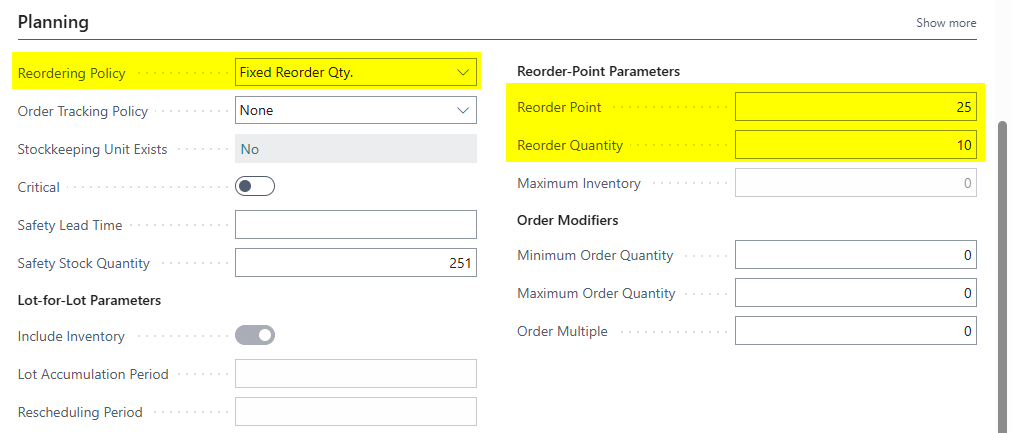 Example of Reordering Policy set to Fixed Reorder Qty.
Order
Finally the Reordering Policy Order simply matches the calculation against the quantity that is on current demand.
| Reordering Policy | Condition | Calculation Formula |
|---|---|---|
| Order | - | 'Qty. to Order' := 'Qty. on Sales Order' - 'Inventory' - 'Qty. on Purch. Order' |
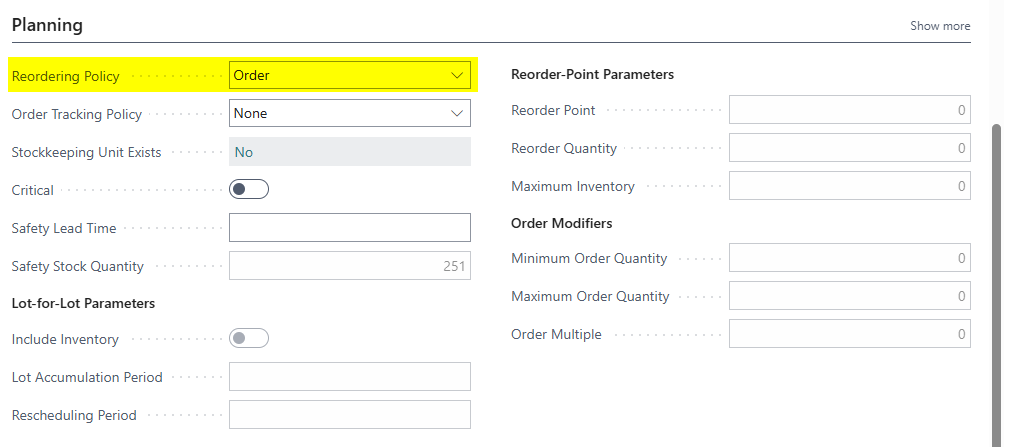 Example of Reordering Policy set to Order
The Colors
The calculation also displays colors to represent different conditional statuses of the item.
| Color | Condition |
|---|---|
| Green + Bold | 'Inventory' > 'Reorder Point' |
| Yellow | 'Inventory' + 'Qty. on Purch. Order' >= 'Reorder Point' |
| Blue + Bold | 'Inventory' > 'Reorder Point' and 'Qty. on Purch. Order' = 0 and 'Qty. on Sales Order' = 0 |
| Red + Italic | 'Qty. to Order' > 0 and 'Qty. on Purch. Order' = 0 and 'Qty. on Sales Order' = 0 |
| Red + Bold + Italic | 'Qty. to Order' > 0 |
| Grey | All other conditions such as missing 'Reordering Policy' or 'Reorder Point' |
Generate Purchase Orders
There is also a small Purchase Order generator built in the Item Planner. Select the rows you want to include, then run the action to create Purchase Orders for the selected rows that have a 'Qty. To Order' greater than 0. Selected items without a Vendor No. assigned are skipped, and you'll get a summary of how many were skipped.
Warning
To control the Purchase Order generation, it is recommended to take each Vendor at a time. Use the filters and row selection to only include a manageable amount of rows as base to create Purchase Orders.
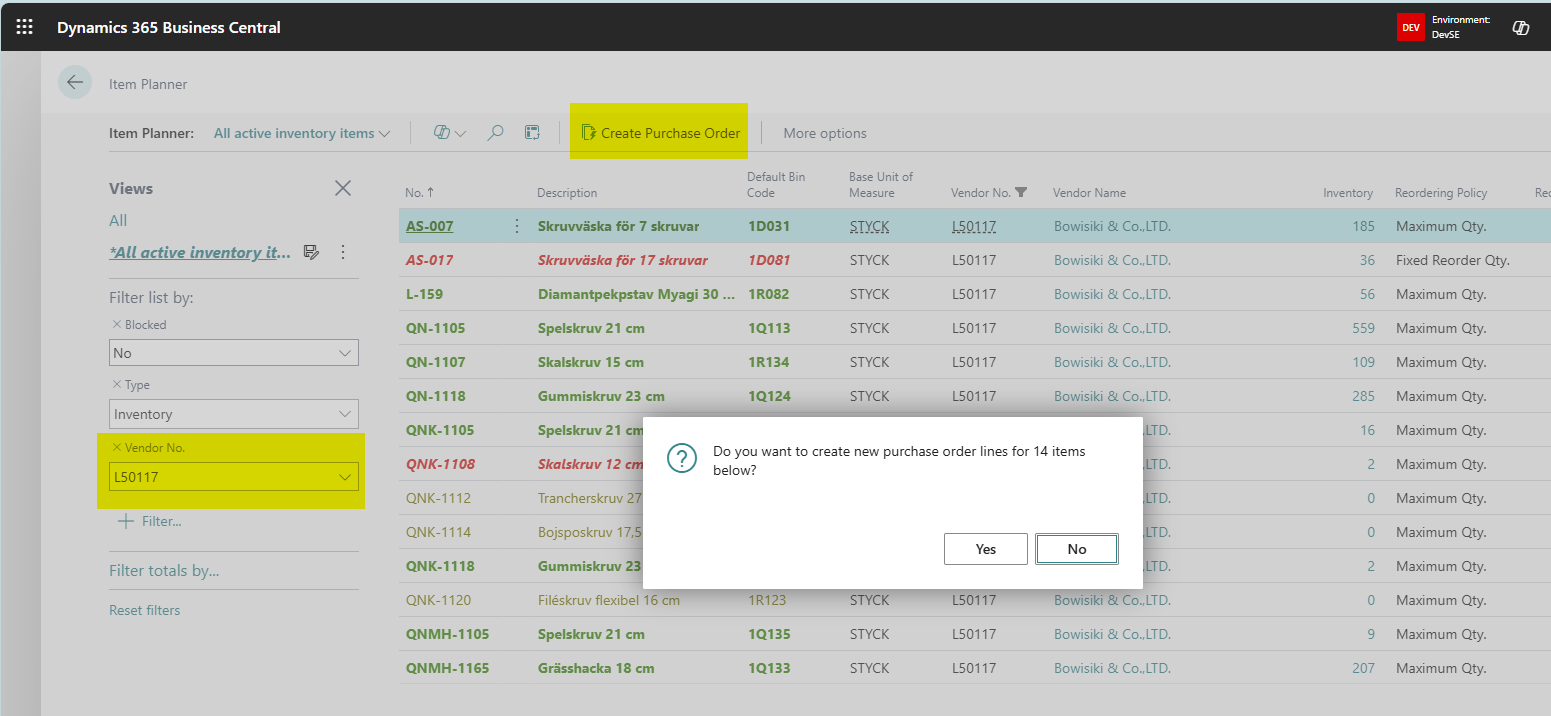 Make sure to select correctly before trying to create Purchase Orders
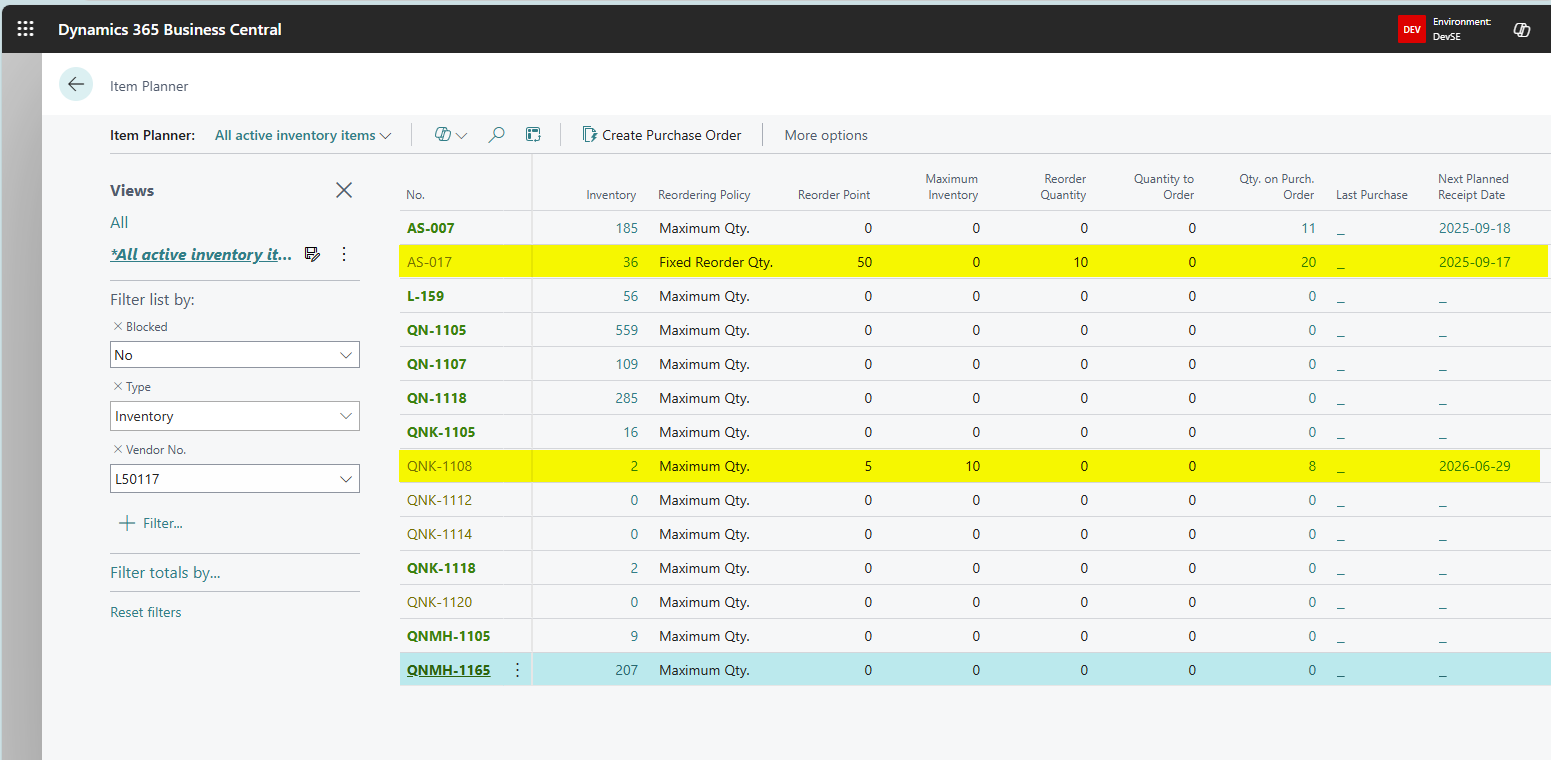 After Purchase Orders has been generated, the Item Planner is automatically updated with the new status.